
How to Log In to Your Instagram Account: Password, 2FA Key, Email Code or Cookie
October 6, 2026
IgAccounts Support Desk· Customer support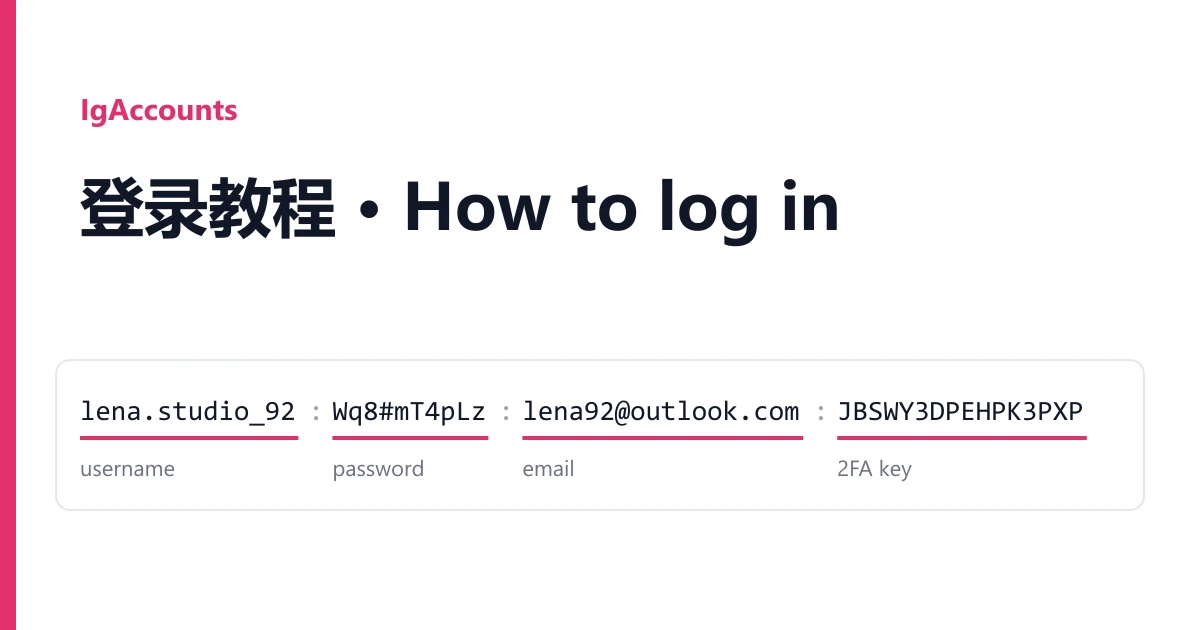
Your Instagram accounts are on your order page, not in your email. Open Dashboard → Orders, pick the order, and the box called Delivered accounts holds one account per line. Copy credentials copies all of it; Download saves it as a text file.
Each line is a short string of fields joined by colons. The first two never move: username, then password. What comes after depends on the batch the account came from. One batch adds a mailbox and a 2FA key, another adds only the key, a few carry a session cookie at the end. So don't count positions. Look at each field and you will know what it is.
What each field looks like
| Field | How to spot it | Where it goes |
|---|---|---|
| Username | Field one, every time. The Instagram handle without the @ | The "username, email or mobile number" box |
| Password | Field two, every time | The Instagram password box |
Anything with an @ in it, for example name@outlook.com | The mailbox linked to the account. Instagram sends its confirmation codes here | |
| Email password | Usually right after the email | Signing in to that mailbox at the mail provider's own site. Not the Instagram password |
| 2FA key | A long run of capital letters and digits, no @, no symbols | Paste it into the code generator to get a 6-digit code. The key itself is never typed into Instagram |
| Session cookie | Text that begins with sessionid=, or text wrapped in { } or [{ }] | A browser sign-in through Cookie-Editor (see below) |
Not every batch carries every field. The product page says what that listing promises; anything beyond it is a bonus from the batch.
Example lines
All values are invented. The shapes follow what the listings we buy from describe.
lena.studio_92:Wq8#mT4pLz:lena92@outlook.com:Hn5vB2xq:JBSWY3DPEHPK3PXPKRSXG5CT
username · password · email · email password · 2FA key

coffee.daily.og:Ks7!pR2mVa:MFRGGZDFMZTWQ2LKNNWG23TP
username · password · 2FA key

marta_k.photo:Ty3$nQ8wEe:marta.k@hotmail.com:Lp9xV4ra:sessionid=58720000000%3AaBcD...
username · password · email · email password · session cookie
Hold on to the whole line, even the parts you don't use today. The email password and the 2FA key are what you will need the next time Instagram wants proof.
Signing in with the username and password
Use the Instagram app or instagram.com, whichever you plan to keep using. Pick the device and connection you will run the account from, because the first sign-in is the one Instagram looks at hardest.
- Paste the username and the password. Copy each one on its own so no colon or space comes along.
- If Instagram asks for a code from an authentication app, open the checkkit 2FA code generator, paste the 2FA key and copy the 6 digits it shows.
- Enter them straight away. A new code appears every 30 seconds, and a rejected code usually just means it expired or your device clock is off. Set the clock to automatic and generate another.
"Suspicious login attempt" or "Confirm it's you"
This screen is normal for an account that just moved to a new owner. Instagram offers to send a code, usually to the linked email. Choose email, then sign in to that mailbox with the email password from your line (Outlook and Hotmail addresses open at outlook.live.com) and copy the code from Instagram's message. Do it once, calmly. Hammering the resend button or retrying the password ten times makes the next check stricter, not easier.
If your batch has no email field and Instagram insists on one, stop there and open a ticket rather than guessing.
A phone number or a selfie video
Sometimes Instagram asks you to add a phone number and enter an SMS code, or to record a short video of your face. Neither can be done for you. We can't hand over a phone that receives the code, and a selfie check expects the original owner's face. If one of these appears on your very first sign-in, with the details typed exactly as delivered, that counts as an account that does not work as delivered. Take a screenshot and report it.
Signing in with a session cookie
A session cookie is a login Instagram has already accepted, saved as text. Loading it into a browser drops you into the account at instagram.com without the password screen. It only works in a desktop browser, not in the Instagram app, and it stops working once Instagram ends that session. Since every line also carries the username and password, treat the cookie as a second way in, handy when the password sign-in keeps throwing checks.
- Install Cookie-Editor from the Chrome Web Store. It runs in Chrome, Edge and other Chromium browsers.
- Open instagram.com. Stay on the login page.
- Click the Cookie-Editor icon in the toolbar. On first use, allow it for this site.
- Press Import, paste only the cookie part of your line, and press Import again.
- Refresh instagram.com. The feed should load as the account.
Cookie-Editor reads cookies that start with [{ and the sessionid=...; name=value style. If yours is packed some other way, skip it and use the password. If the page still shows the login form after the refresh, the session has ended. Sign in with the username and password instead.
The first few days
Most accounts that get locked after a clean sign-in are locked by what happens next. A new device, then a new username, a new password, a new email and a rewritten bio, all in one evening, looks to Instagram like a stolen account. So for the first days:
- Use one device and one network, the same ones you signed in with.
- Change one thing at a time, with a few days between changes, and check you can still sign in after each.
- No mass following, liking or messaging. If Instagram shows "Action blocked", rest the account for a day or two.
- Keep the email password and 2FA key somewhere safe. They are your way back in.
Bought an old Instagram account? Once you are in, open About this account in the profile menu and check the date joined. For an account with followers, look at the follower count on the profile. Both checks take a minute and belong inside the replacement window.
If it still won't open
Copy the fields again, one by one, with no spaces at either end. Try once more on the same device. If the password is refused, the account shows as disabled, or a phone or selfie check blocks the first sign-in, open a ticket from the order page within the guarantee period shown on the product. Say which line failed and attach a screenshot of exactly what Instagram showed. Problems that start later, after the account has been in use, are not covered by a replacement.